
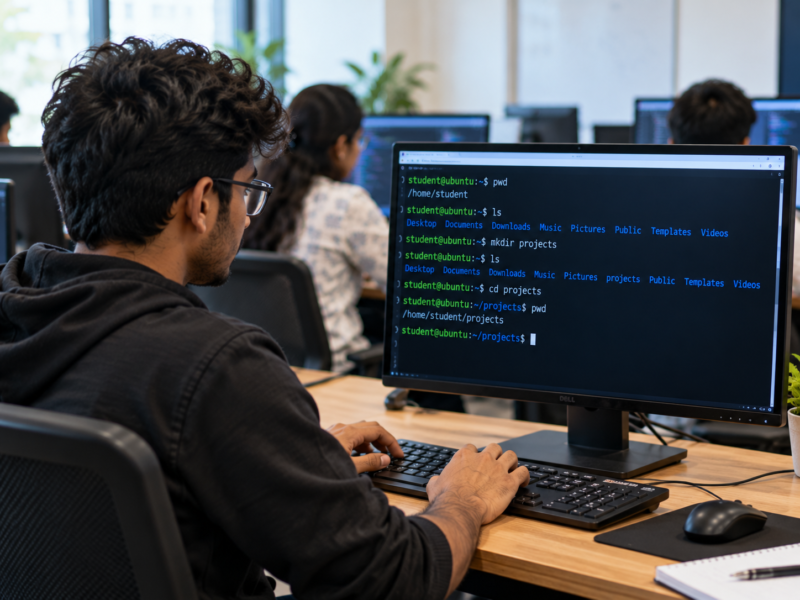
Many students learn programming through visual tools and code editors. However, real IT work often involves tasks that require more than writing code. Developers, testers and system administrators regularly use command-line tools to manage files, run programs and solve technical problems.
Learning these skills can help students become more confident and independent. It also gives them a better understanding of how computers work.
The Best IT Training Institute in Hadapsar should help students understand practical tools, not just programming languages. One important skill is learning how to use the command line.
What Is a Command-Line Interface?
A command-line interface, also called CLI, lets users communicate with a computer through text commands.
Instead of clicking icons and opening menus, you type instructions into a terminal. The computer then performs the requested task.
For example, you can use a command to:
- Open a folder.
- Create a new file.
- Rename an existing file.
- Run a program.
- Check system information.
- Search for specific text.
Windows, macOS and Linux all provide command-line tools. Their commands may differ, but the basic idea remains the same.
On Windows, students can use Command Prompt or PowerShell. On macOS and Linux, they can use the Terminal application.
Why Should IT Students Learn Command-Line Basics?
The command line is useful in many areas of IT. It helps professionals complete tasks quickly and understand what happens behind the scenes.
Here are some important reasons to learn it.
1. It Helps You Work Faster
Some computer tasks take several clicks through a graphical interface. However, a single command can often complete the same task.
For example, you may need to create several folders for a project. Instead of creating each folder manually, you can use commands.
This saves time, especially when you repeat the same task regularly.
Moreover, command-line tools allow users to combine multiple instructions. As a result, you can complete larger tasks with fewer steps.
2. It Helps You Understand How Computers Work
Using the command line teaches you how a computer handles files, folders and running programs.
You learn where files are stored and how applications use them. You also become familiar with paths, permissions and system processes.
These concepts are useful beyond the terminal. They can help you understand errors and solve problems in different software environments.
3. It Is Useful for Developers
Developers use the terminal for many daily tasks.
For example, they may use it to:
- Start a local development server.
- Install project dependencies.
- Run application tests.
- Execute scripts.
- Build an application.
- Check error messages.
Although many code editors offer buttons for these tasks, knowing the commands gives you more control.
4. It Supports Testing and Troubleshooting
Testing professionals often need to run applications, check logs and investigate problems.
The command line can help them perform these tasks. It also makes it easier to repeat a test with the same instructions.
For example, a tester can run a command to start an application or execute an automated test.
Therefore, command-line knowledge can be useful even if you do not plan to become a full-time developer.
10 Basic Command-Line Commands Every IT Student Should Know
You do not need to learn hundreds of commands at the beginning. Start with a few useful ones and understand what each command does.
The examples below use common commands found in Linux and macOS terminals. Some commands also work in PowerShell, while Windows Command Prompt uses different alternatives for certain tasks.
1. pwd – Check Your Current Location
The pwd command displays the folder you are currently working in.
For example:
pwdThe terminal may display:
/home/student/projectsThis tells you the current directory.
It is useful when you are working with several folders and need to confirm your location.
2. ls – View Files and Folders
The ls command displays the files and folders inside your current location.
lsYou can also use:
ls -lThis shows additional information, such as file permissions and sizes.
On Windows PowerShell, the Get-ChildItem command or its ls alias can display directory contents.
3. cd – Change Your Directory
The cd command helps you move between folders.
For example:
cd projectsThis opens the projects folder if it exists in your current location.
To move one level back, use:
cd ..This command is important because many terminal tasks depend on your current directory.
4. mkdir – Create a New Folder
The mkdir command creates a new directory.
mkdir my-projectThis creates a folder named my-project.
You can use it to organise your work before starting a new application.
5. touch – Create an Empty File
The touch command creates an empty file if it does not already exist.
touch index.htmlThis creates a file named index.html.
It is commonly available on Linux and macOS. On Windows PowerShell, you can use:
New-Item index.html -ItemType File6. cp – Copy Files
The cp command copies a file from one location to another.
cp notes.txt backup.txtThis creates a copy named backup.txt.
It is useful when you want to keep a backup before changing an important file.
7. mv – Move or Rename Files
The mv command can move a file to another folder or rename it.
For example:
mv old-name.txt new-name.txtThis changes the file name.
You can also move files between directories by providing the destination path.
8. cat – View File Contents
The cat command displays the contents of a text file.
cat notes.txtThis is useful when you want to check a small file without opening a separate editor.
For longer files, commands such as less can make reading easier.
9. grep – Search for Specific Text
The grep command searches for a word or phrase inside text.
grep "error" app.logThis searches the file app.log for lines containing the word “error”.
Developers and system administrators often use this command when checking logs.
10. clear – Clean Your Terminal Screen
The clear command removes the existing text from the terminal display.
clearIt does not delete your files or commands from the computer. It simply gives you a cleaner screen to continue working.
What Are File Paths and Why Do They Matter?
A file path tells the computer where a file or folder is located.
For example:
/home/student/projects/index.htmlThis path shows the location of the index.html file.
There are two common types of paths.
Absolute path: It gives the complete location of a file or folder.
Relative path: It gives the location based on your current working directory.
For example, if you are already inside the projects folder, you may only need to enter:
cd frontendYou do not need to type the full path every time.
Understanding paths helps you avoid common errors. It also makes working with larger software projects much easier.
What Is the Difference Between a Command Line and a Graphical Interface?
Both interfaces help users interact with a computer. However, they work in different ways.
| Command-Line Interface | Graphical User Interface |
|---|---|
| Uses text commands | Uses icons, menus and windows |
| Can be fast for repeated tasks | Often easier for beginners |
| Supports scripting and automation | Usually depends on manual actions |
| Requires command knowledge | Requires visual navigation |
| Offers detailed control over many system tasks | Makes common tasks easier to discover |
Neither interface is better for every situation.
For example, opening a photo may be easier through a graphical interface. However, searching through hundreds of log files may be faster with command-line tools.
Therefore, IT students should learn when to use each one.
Common Command-Line Mistakes Beginners Should Avoid
Beginners often make small mistakes while using the terminal. Fortunately, most of them can be avoided with a little care.
1. Running Commands Without Understanding Them
Never copy a command from the internet without checking what it does.
Some commands can delete files or change system settings. Therefore, understand the instruction before running it.
2. Working in the Wrong Folder
A command may affect the wrong files if you are in an unexpected directory.
Always check your current location with pwd before performing important operations.
3. Ignoring Error Messages
An error message often explains why a command failed.
Read it carefully instead of repeating the same command. Check spelling, file names and folder paths first.
4. Forgetting That Commands Can Differ
Windows, macOS and Linux do not always use the same commands.
For example, dir is commonly used to list files in Windows Command Prompt, while ls is common in Linux and macOS.
Learn the tools available on your own system before trying commands from another platform.
How Can IT Students Practise Command-Line Skills?
Reading commands is not enough. You need regular practice to become comfortable with the terminal.
Try this simple learning plan:
Step 1: Open Your Terminal
Find the terminal application on your computer. Windows users can begin with PowerShell, while macOS and Linux users can open Terminal.
Step 2: Create a Practice Folder
Create a folder named terminal-practice. Use the mkdir command where available.
Step 3: Create and Manage Files
Practise creating, copying, moving and renaming a few sample files.
Step 4: Explore Different Folders
Use cd, pwd and ls to understand how directory navigation works.
Step 5: Read and Search File Contents
Create a small text file. Then practise viewing its contents and searching for a specific word.
Step 6: Learn One New Command Every Day
Do not rush to memorise everything. Learn a command, understand its purpose and use it in a real task.
You can also explore the official Microsoft Learn documentation for PowerShell, which provides guidance and examples for working with the command line.
Final Thoughts: Build Practical Skills Before Your First IT Job
Command-line knowledge is a useful skill for students entering the IT industry. It helps you manage files, run applications, understand systems and solve technical problems.
You do not need to become an expert overnight. Start with basic commands and practise them regularly. Over time, these small skills can make your daily work easier.
If you want structured guidance in programming and other practical IT skills, explore Floating Minds Institute. As a learning destination for students seeking the Best IT Training Institute in Hadapsar, FMI can help you build a stronger foundation for your IT career.


